CupertinoSpellCheckSuggestionsToolbar
Flutter中专门为iOS平台(Cupertino风格)设计的拼写检查建议工具栏
CupertinoSpellCheckSuggestionsToolbar是Flutter中专门为iOS平台(Cupertino风格)设计的拼写检查建议工具栏。它通常与文本输入字段(如CupertinoTextField或在iOS上运行的TextField)结合使用,当用户输入文本时出
现拼写错误或提供文本建议时,此工具栏会显示在文本选择句柄上方。
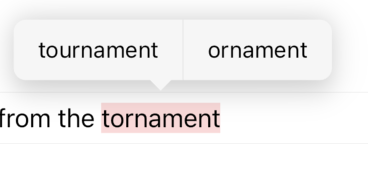
-
主要用途:
- 拼写检查建议: 当检测到拼写错误时,提供修正建议列表。
- 文本操作: 包含剪切、复制、粘贴、全选等标准文本编辑操作。
- 外观定制: 遵循iOS的设计语言,提供原生般的用户体验。
-
使用场景:
- 富文本编辑器: 在需要对用户输入进行拼写检查和提供文本操作的自定义文本编辑器中。
- 聊天应用: 在文本输入框中,当用户输入消息可能存在拼写错误时,提供快速修正。
- 笔记应用: 允许用户在编辑笔记时,方便地进行文本操作和拼写修正。
- 任何需要iOS风格文本输入和编辑体验的应用程序。
示例
基础拼写检查和文本操作功能
import 'package:flutter/cupertino.dart';
import 'package:flutter/services.dart'; // For TextInputFormatters
class BasicSpellCheckDemo extends StatefulWidget {
const BasicSpellCheckDemo({Key? key}) : super(key: key);
State<BasicSpellCheckDemo> createState() => _BasicSpellCheckDemoState();
}
class _BasicSpellCheckDemoState extends State<BasicSpellCheckDemo> {
final TextEditingController _textController = TextEditingController(text: 'This is a test with a mispelling here.');
void dispose() {
_textController.dispose();
super.dispose();
}
Widget build(BuildContext context) {
return CupertinoPageScaffold(
navigationBar: const CupertinoNavigationBar(
middle: Text('Spell Check Toolbar Demo'),
),
child: SafeArea(
child: Padding(
padding: const EdgeInsets.all(16.0),
child: Column(
children: <Widget>[
const Text(
'尝试输入一些带拼写错误的文本,然后长按或选择文本,工具栏会自动出现(仅限iOS模拟器/设备)。',
style: TextStyle(fontSize: 14),
),
const SizedBox(height: 20),
CupertinoTextField(
controller: _textController,
placeholder: '输入文本...',
// 确保启用拼写检查,系统会自动显示建议工具栏
// spellCheckConfiguration 默认是开启的,但可以进一步配置
spellCheckConfiguration: const SpellCheckConfiguration(),
minLines: 1,
maxLines: 5,
// inputFormatters: [
// // 如果需要,可以添加输入格式化器
// ],
decoration: BoxDecoration(
border: Border.all(color: CupertinoColors.lightBackgroundGray),
borderRadius: BorderRadius.circular(5.0),
),
),
],
),
),
),
);
}
}
void main() {
runApp(const CupertinoApp(
home: BasicSpellCheckDemo(),
));
}
使用自定义 SpellCheckConfiguration
import 'package:flutter/cupertino.dart';
import 'package:flutter/services.dart';
class CustomSpellCheckDemo extends StatefulWidget {
const CustomSpellCheckDemo({Key? key}) : super(key: key);
State<CustomSpellCheckDemo> createState() => _CustomSpellCheckDemoState();
}
class _CustomSpellCheckDemoState extends State<CustomSpellCheckDemo> {
final TextEditingController _textController = TextEditingController(
text: 'This is another mispelled word with some extra text. '
'I like fluter and programing.'
);
void dispose() {
_textController.dispose();
super.dispose();
}
Widget build(BuildContext context) {
return CupertinoPageScaffold(
navigationBar: const CupertinoNavigationBar(
middle: Text('Custom Spell Check Demo'),
),
child: SafeArea(
child: Padding(
padding: const EdgeInsets.all(16.0),
child: Column(
children: <Widget>[
const Text(
'此示例使用自定义的SpellCheckConfiguration,但默认行为仍由系统控制。',
style: TextStyle(fontSize: 14),
),
const SizedBox(height: 20),
CupertinoTextField(
controller: _textController,
placeholder: '输入文本...',
// 自定义 SpellCheckConfiguration,你可以选择是否启用,虽然SpellCheckSuggestionsToolbar
// 默认是根据系统行为自动出现的。
spellCheckConfiguration: const SpellCheckConfiguration(
// 可以设置spellCheckSuggestionsToolbarBuilder,但通常不需要,
// 因为系统会自动根据平台创建正确的工具栏。
// spellCheckSuggestionsToolbarBuilder: (BuildContext context, EditableTextState editableTextState) {
// return CupertinoSpellCheckSuggestionsToolbar(
// editableTextState: editableTextState,
// );
// },
),
minLines: 1,
maxLines: 5,
decoration: BoxDecoration(
border: Border.all(color: CupertinoColors.lightBackgroundGray),
borderRadius: BorderRadius.circular(5.0),
),
),
],
),
),
),
);
}
}
void main() {
runApp(const CupertinoApp(
home: CustomSpellCheckDemo(),
));
}
在TextField中使用
import 'package:flutter/material.dart'; // 注意这里是 Material 库
import 'package:flutter/cupertino.dart';
import 'package:flutter/services.dart';
class MaterialSpellCheckDemo extends StatefulWidget {
const MaterialSpellCheckDemo({Key? key}) : super(key: key);
State<MaterialSpellCheckDemo> createState() => _MaterialSpellCheckDemoState();
}
class _MaterialSpellCheckDemoState extends State<MaterialSpellCheckDemo> {
final TextEditingController _textController = TextEditingController(
text: 'A mispelled word in a Material TextField on iOS.'
);
void dispose() {
_textController.dispose();
super.dispose();
}
Widget build(BuildContext context) {
// 假设这个App在iOS设备上运行,TextField会自动使用Cupertino风格的工具栏
return MaterialApp(
home: Scaffold(
appBar: AppBar(
title: const Text('Material TextField on iOS'),
),
body: Padding(
padding: const EdgeInsets.all(16.0),
child: Column(
children: <Widget>[
const Text(
'在iOS模拟器/设备上运行此应用程序。即使是Material的TextField,在检测到拼写错误时,也会显示Cupertino风格的建议工具栏。',
style: TextStyle(fontSize: 14),
),
const SizedBox(height: 20),
TextField(
controller: _textController,
decoration: const InputDecoration(
labelText: '输入文本...',
border: OutlineInputBorder(),
),
// 确保 spellCheckConfiguration 启用,默认是开启的
spellCheckConfiguration: const SpellCheckConfiguration(),
minLines: 1,
maxLines: 5,
),
],
),
),
),
);
}
}
void main() {
runApp(const MaterialSpellCheckDemo());
}
注意点
- 平台限制:
CupertinoSpellCheckSuggestionsToolbar是为iOS平台设计的。在Android上运行时,Flutter会根据Material设计语言显示相应的工具栏(例如TextSelectionToolbar的Material风格实现)。因此,此组件的主要作用范围是在iOS设备或模拟器上提供原生体验。 - 自动管理: 大多数情况下,你不需要手动创建或管理
CupertinoSpellCheckSuggestionsToolbar。CupertinoTextField或在iOS上运行的TextField会在需要时自动显示和隐藏它。 editableTextState:CupertinoSpellCheckSuggestionsToolbar需要一个EditableTextState来获取文本内容、光标位置、选中范围以及执行文本操作。这个状态通常由CupertinoTextField或TextField在内部提供。- 建议来源: 拼写检查和建议功能通常由底层操作系统提供。Flutter只是提供一个UI组件来显示这些建议。
- 国际化(i18n): 拼写检查的语言通常取决于设备的系统语言设置。确保你的应用在处理多语言输入时,能够正确地与系统拼写检查服务交互。
- 性能: 工具栏的显示和隐藏本身通常不会引起明显的性能问题。主要的性能考虑在于文本输入字段的复杂性以及拼写检查服务的响应速度。
构造函数
const CupertinoSpellCheckSuggestionsToolbar({
  super.key,
  required EditableTextState editableTextState,
})
属性
| 属性名 | 属性类型 | 说明 |
|---|---|---|
editableTextState | EditableTextState | 必需。 提供与文本输入字段交互的状态。它包含了文本控制器、当前的文本选择信息、光标位置以及用于执行文本操作(如剪切、复制、粘贴、替换建议)的方法。这是工具栏能够执行其功能的关键。 |
anchor | Rect | (内部使用,通常不直接配置)文本输入字段中用于定位工具栏的锚点矩形。 |
buttonItems | List<ContextMenuButtonItem> | (内部使用,通常不直接配置)由 editableTextState 和系统拼写检查建议动态生成的按钮项列表。这些按钮包括“剪切”、“复制”、“粘贴”、“全选”以及拼写建议(如有)。 |
clipboardStatus | ClipboardStatus | (内部使用,通常不直接配置)剪贴板的当前状态,用于判断是否应该启用“粘贴”功能。 |
onSelectionToolbarClose | VoidCallback | (内部使用,通常不直接配置)当工具栏关闭时(例如用户点击工具栏外部)调用的回调。 |
onToolbarRequested | VoidCallback? | (内部使用,通常不直接配置)一般由EditableTextState在内部设置,当用户请求显示工具栏时触发。通常在长按或文本选择时发生。 |
magnifierConfiguration | TextMagnifierConfiguration | (内部使用,通常不直接配置)与文本放大镜配置相关,在iOS上,当用户拖动光标时,通常会出现放大镜。此属性与工具栏的直接功能关联较弱,更多是文本编辑行为的一部分。 |
关键属性解释:
editableTextState: 这是CupertinoSpellCheckSuggestionsToolbar唯一且最重要的属性。它充当工具栏与底层文本字段之间的桥梁。工具栏通过editableTextState获取当前的文本、选择范围、光标位置,并调用相应的方法来执行剪切、复制、粘贴、全选,以及最重要的——应用拼写检查建议。如果此属性未正确提供,工具栏将无法工作。在CupertinoTextField或TextField(在iOS上)中,这一切都是自动处理的。